


Our increasingly interconnected world of technology makes third-party apps extremely useful; we can do so much more with them than just wonder at their convenience. But with this convenience comes the price of access to our valuable information. At every click of the permission button on an app on your phone or laptop, there’s a virtual door that opens. Knowing how these virtual doors operate matters if we want to remain safe online.This guide will walk you through the typical dangers and give you an overview of how app permissions operate so that you know how to protect your information.
The Hidden Costs: Risk Factors of Using Third-Party Apps
Although the majority of apps come with very positive intent; the dangers of improperly managed data are very real and serious.
• Data Breaches: Apps that contain your personally identifiable information may attract hackers who could compromise the security of the app’s servers and resultantly obtain access to your information.
• Data Selling and Sharing: Some of the so-called “free” apps make their money by selling users’ data and sharing it with companies that go on to target them with more ads. This further reduces users’ control of their own information.
• Invasion of Privacy: Having too many permission requests might enable the app access your location information or possibly read your contacts. This seems like an invasion of your zone of privacy.
• Malware and Spyware: Having malware applications that appear as harmless tools could potentially install malware programs on your system that could steal your information or even control your system remotely.
•Reputation Damage and Identity Theft: The worst that could happen because of the leakage of your private text messaging communication, images, or financial details could lead to blackmailing or stealing of your identity.
How Permissions on Apps Work:
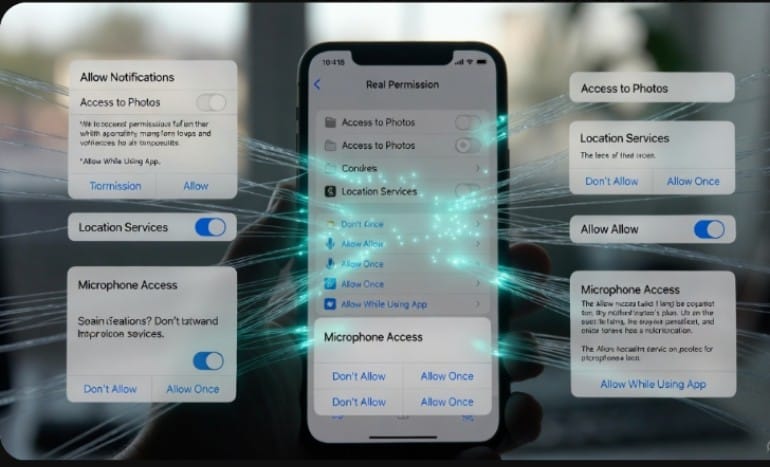
Permissions given by an app are the manner of seeking the user’s consent before the app can access certain functionalities or information of the user’s phone. A smartphone or laptop can be likened to a castle with gates that the user opens according to the application the user wants the application to access.
These requests are normally made during the first setup of the application. The point to take home is that these should happen according to the principle of “least privilege,” which implies that the application should only access functions and the information that it requires strictly for it to run.
For example:
- This application requires access to the photo gallery. But it doesn’t require access to your contact list or the mic.
- The A maps and navigation app requires access to your location. This app should not access your text messages.
Practical Tips for Taking Back Control
Keeping oneself safe and sound isn’t about cutting out technology; it’s about being more aware of how technology can affect one’s life.Here’s how that’s done.

Audit Before You Install:
- Check the Source: Ensure that the apps come from reliable platforms such as the Apple App Store or the Google Play Store that offers security screenings.
- Check Reviews and Rating Statistics: Look beyond the ratings and reviews. Check what users have reported regarding deceptive behavior or misuse of the information.
- Research the Developer: A simple research on the developer of the apps can give an idea about their reputation and whether their products are reliable.
- Check the Privacy Policy: Skimming the detailed policy may show how the app treats your information. Lack of clarity or an indication of very broad information sharing can make this a major point of contention.
Master the Art of Permission Management·
Check the requests at the point of install. “If an application requests access rights, take a step back and say to yourself ‘Do these access rights make sense? Why do they need that access right? And if the relationship is not that clear-cut, do not grant them any access.
- Monitor Permissions on Apps Already on the Phone: Check the various apps that have access on your phone. This can easily be accessed on the phone settings under Privacy/App Permissions. Remove rights on the apps that don’t require them.
- Use ‘While Using the App’: Always prefer the more restricted permission. Always choose ‘While Using the App’ over ‘Always’ unless this permission is required for the purpose of the app.
3. Practice Secure and Private Browsing</p><p>
- “Sign in with” Carefully:
Social logins or Google logins might make the job of signing up easy but open the door to that platform on the app. Check how specific details are being transmitted and consider the email and password option if this app/similar ones are not critical. • Use a Strong, Unique Password on All Apps:
Password management software makes this practice easiest of all because this single application can protect your other accounts even if one of them were compromised.
- Keep your software up-to-date:
Ensure that your operating system and other software are kept up-to-date on your device. This may contain fixes for newly discovered security holes. Engage with Minimalism and Regular Cleanup.- Remove apps you no longer use:
Unused apps on your iPhone are more than just clutter, they can pose potential security threats. Remove apps that are not used more than a few months.
- Restrict Sharing on Social Media Websites :
Manage what you share on social websites and monitor the settings on the apps that control who can access the information.
Conclusion:
Your Data, Your Responsibility But being aware of the dangers of your personal information being used improperly and making the right choices with your permission settings can make the world of technology not only more enjoyable but safer too. All it takes these days is a few minutes of your time. Check out what your app permission settings look like right now. This may just prove to be the most simple yet highly effective step that can ensure your security. Always remember that being secured requires practice.